ADFBZ601 Fingerbot Pro User Manual
User Manual

English


Model: ADFBZ601
Product name: ADAPROX Fingerbot Pro
Connection: Zigbee 3.0, gateway required
Platform: Powered by Tuya, Smart Life App
Fingerbot Pro is a smart button pusher that adds app control, schedules, scene automation, voice control, and touchless triggering to physical buttons you already use. It can press wall switches, coffee maker buttons, access panels, water heater buttons, air-conditioner panels, and similar low-voltage household controls without rewiring or replacing the original device.
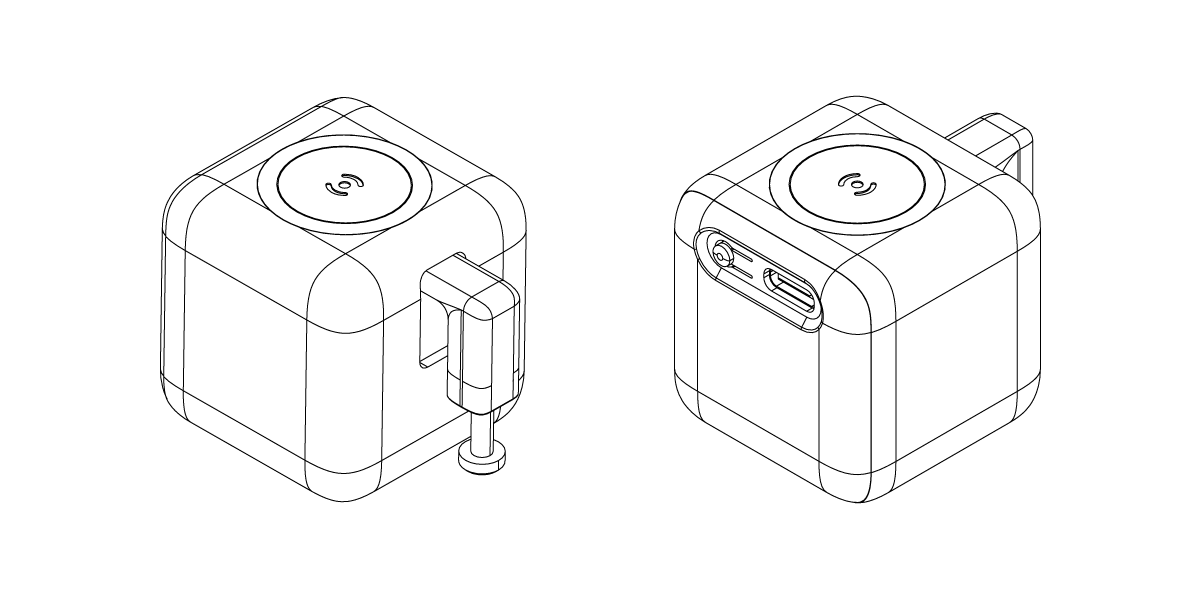
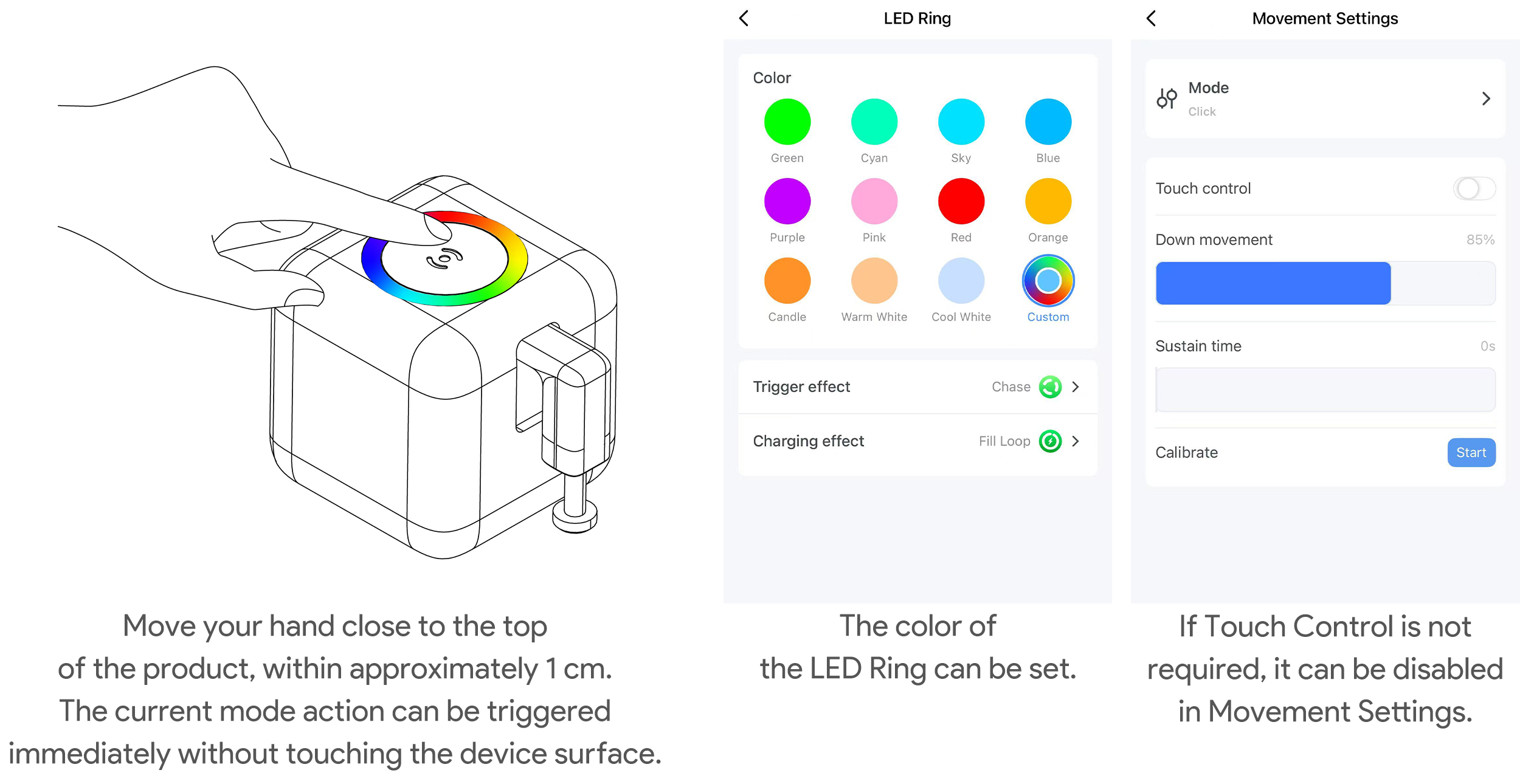
Compared with a standard button pusher, Fingerbot Pro adds an RGB Halo light ring and upgrades the top control area to touchless sensing. Move your finger close to the top surface, about 1 cm away, to trigger a press without touching the device. This is useful around elevator buttons, shared panels, kitchens, bathrooms, and other places where you may prefer a no-touch operation.
This model uses Zigbee 3.0 and must be added through a Tuya Zigbee gateway in the Smart Life App. After it is connected through the gateway, remote control, app automations, and supported voice assistants are available.
Before use, make sure a compatible Tuya Zigbee gateway has already been added to the Smart Life App and is online.
• Fingerbot Pro main unit x 1
• Removable base x 1
• High-strength double-sided adhesive pad x 2
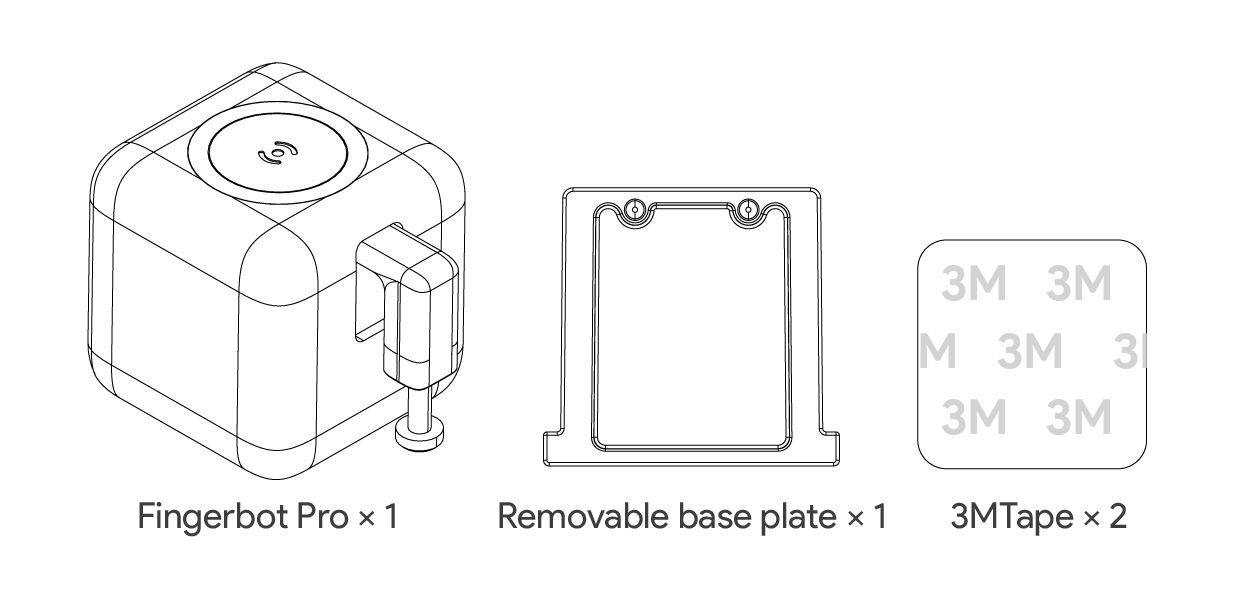
Note: Type-C charging cable, power adapter, and Zigbee gateway are not included. Use a standard Type-C cable and a 5 V / 1 A power adapter. Prepare a compatible Tuya Zigbee gateway before pairing.
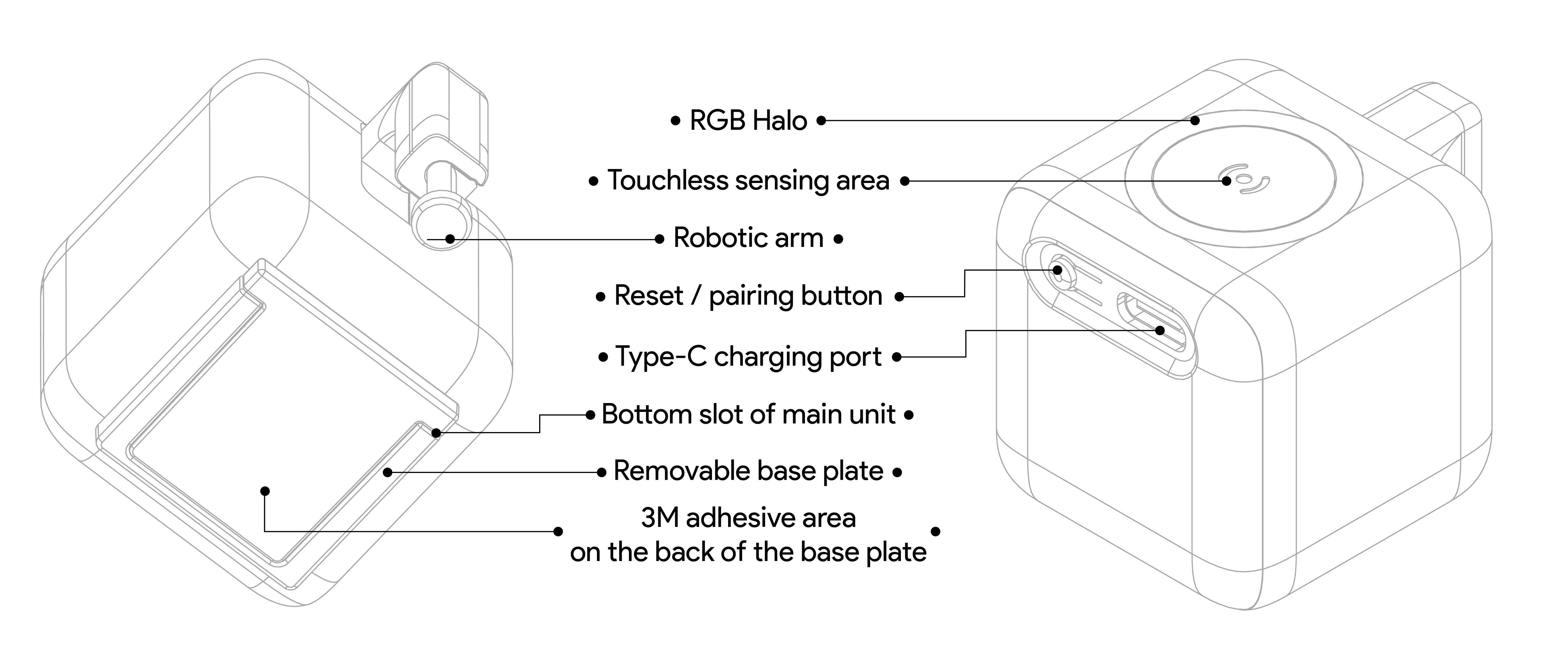
RGB Halo: 6 full-color LEDs for pairing, charging status, press feedback, and custom light effects
Press arm: Up to 12 mm travel, with adjustable press and release positions
Touchless sensing area: The top surface supports touchless triggering and direct touch
Reset / pairing button: Press and hold for 5 seconds to enter Zigbee pairing mode; the purple light flashes quickly
Type-C charging port: Use a 5 V / 1 A power adapter
Bottom slot: Locks the main unit onto the removable base
Removable base: Stays on the target device so the main unit can be removed for charging
Adhesive area: Attach the base to a wall plate, panel, appliance, or other flat surface
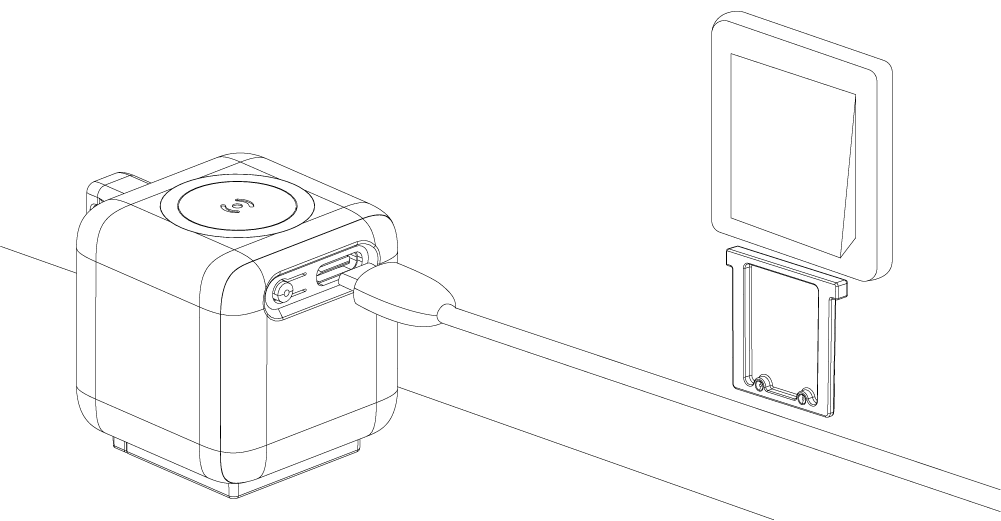
Before first use, charge Fingerbot Pro with a Type-C cable and a 5 V / 1 A power adapter. A full charge takes about 3 hours. Charging light effects can be customized in the RGB Halo page of the Smart Life App control panel.
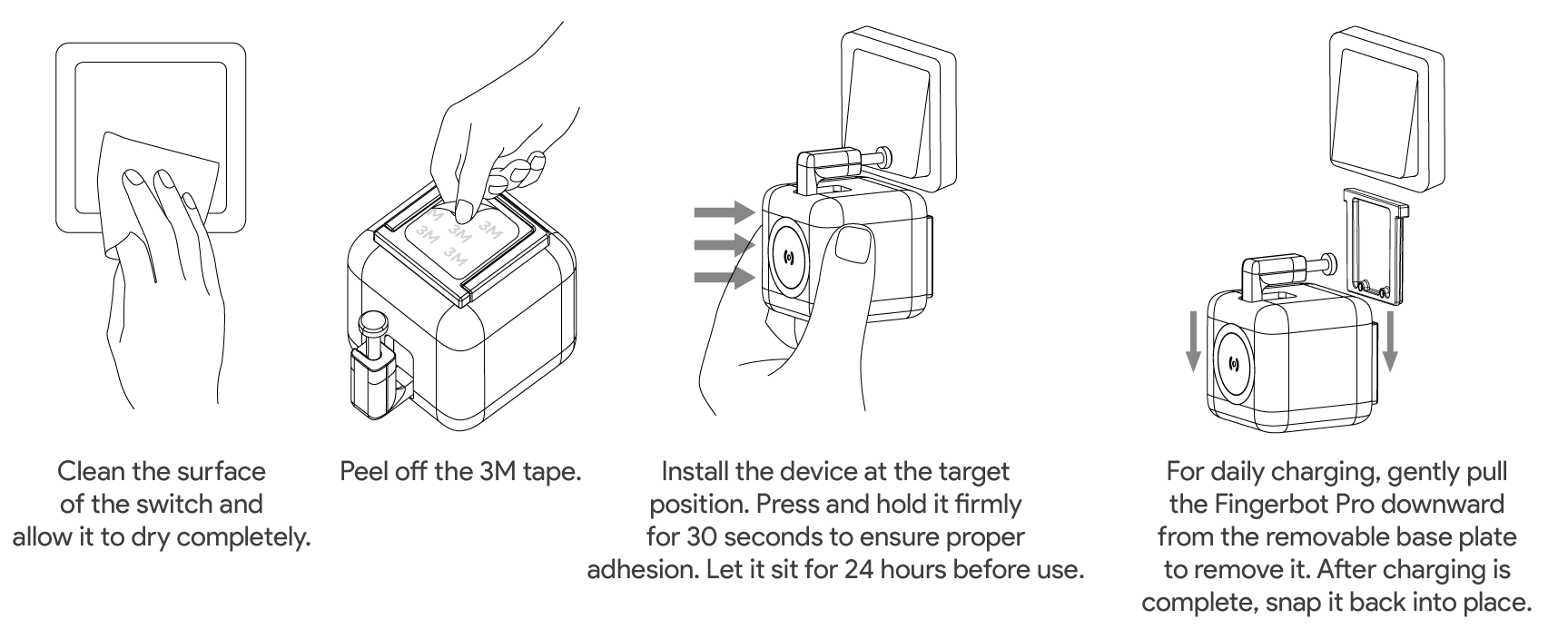
The removable-base design makes charging easier after installation. Pull the main unit off the base, charge it on a table, then snap it back onto the base after charging. The base can remain attached to the target button.
Search for “Smart Life” in your mobile app store and install the App. After installation, log in or create an account, then follow the on-screen instructions in the App to add the device.


This product must be paired through a Tuya Zigbee gateway in the Smart Life App. If you do not already have one, add a compatible Tuya Zigbee gateway to the app first and confirm that it is online.
Common Tuya Zigbee gateways include standalone Zigbee gateways, multi-protocol gateways with Zigbee support, and some smart speakers or cameras with built-in gateway functions. Check your gateway manual for compatibility.
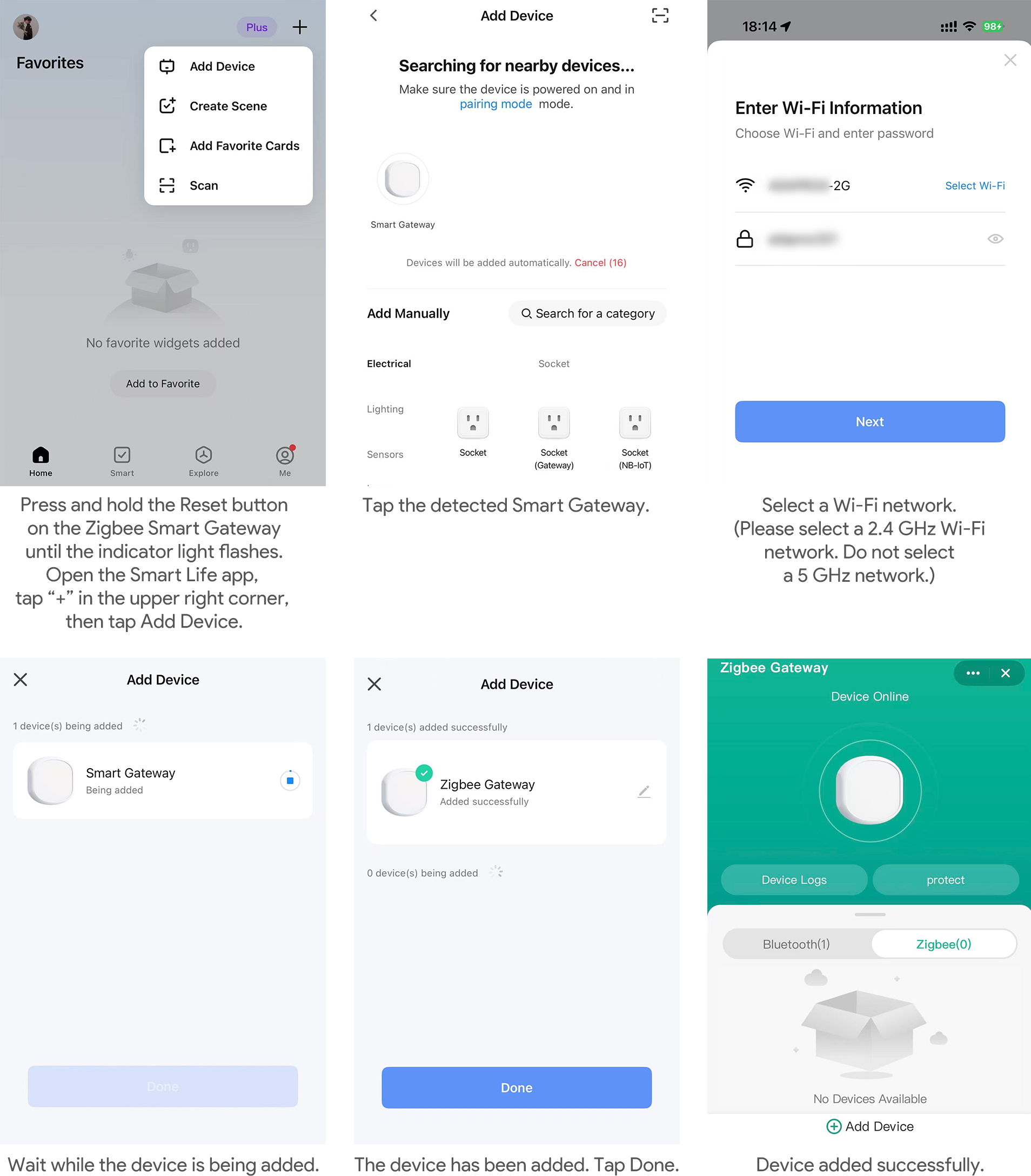
Tip: Common Tuya Zigbee gateways can be used, including standalone Zigbee gateways, multi-protocol gateways with Zigbee functionality, and some smart speakers / cameras with an integrated gateway. For specific compatibility, please refer to your gateway manual.
1. Make sure the Tuya Zigbee gateway is powered on and shown as online in the Smart Life App.
2. Open the gateway page in the Smart Life App and tap "Add sub-device".
3. Press and hold the reset / pairing button on Fingerbot Pro for 5 seconds, until the purple light flashes quickly.
4. The gateway will scan for nearby Zigbee devices. Follow the in-app steps to finish pairing.

For the first installation, keep the main unit and the base assembled. This lets you use the press arm as an alignment guide and helps prevent the base from being installed in the wrong direction.
1. Clean the target button or switch surface thoroughly. Wait until the surface is completely dry.
2. Keep the main unit attached to the base. Remove one liner from the adhesive pad and attach the pad to the adhesive area on the base.
3. Remove the outer liner. Press the assembled main unit and base onto the target position, aligning the press arm with the center of the button.
4. Press firmly for 30 seconds.
5. Wait 24 hours before regular use so the adhesive can reach its best strength.
6. If the app asks for calibration, follow the on-screen calibration steps after the adhesive has settled.
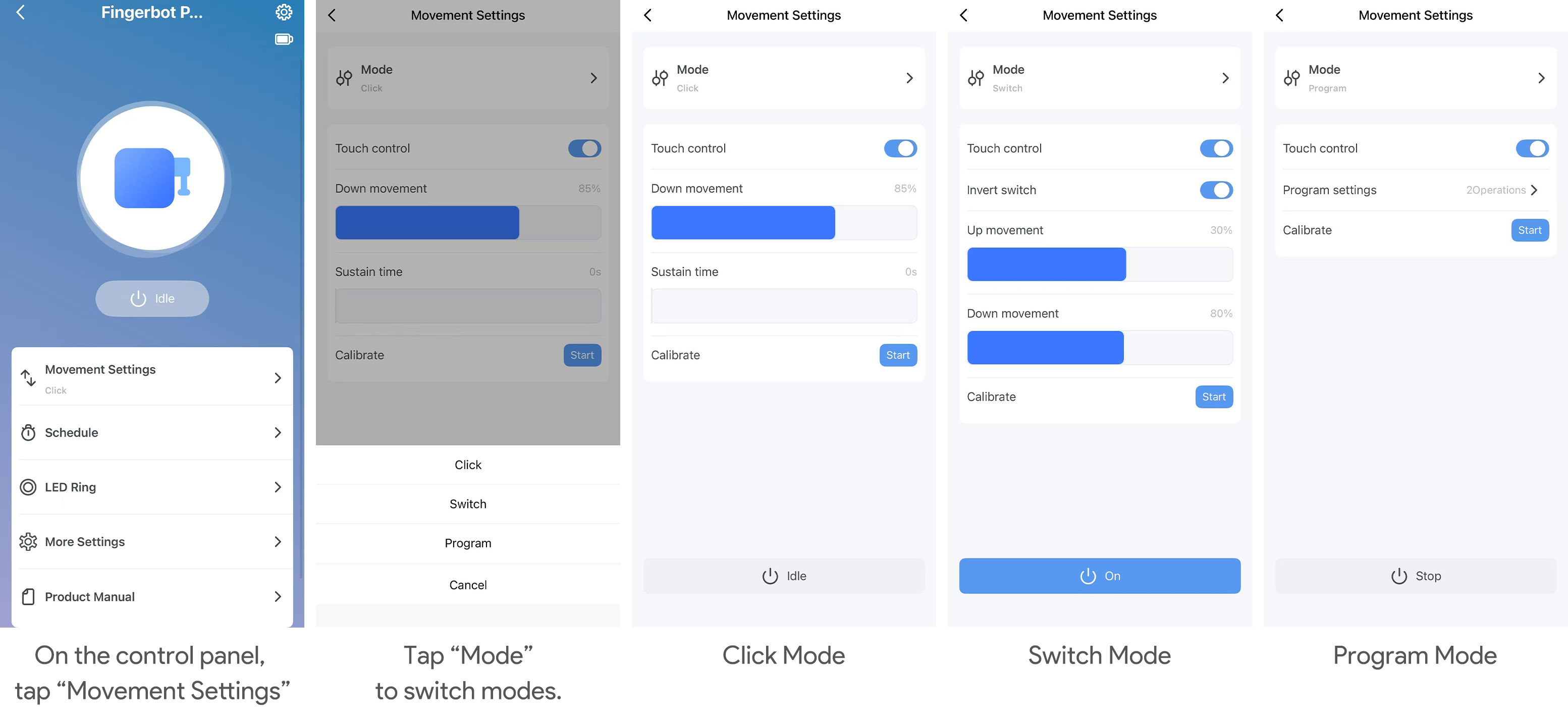
In the Smart Life App, open the control panel and go to "Motion Settings".
Click: A single press, such as a coffee maker start button, doorbell, or panel button - Press down 85%, hold 0 seconds
Switch: Rocker switches or flat switches with clear on / off positions - Press down 80%, release to 30%
Program: Custom multi-step actions, such as press and hold, wait, then press again - User-defined
Adjustable motion parameters may include:
Press depth: 51% to 100% - How far the press arm moves down
Release position: 0% to 50% - How high the arm returns in switch mode
Hold time: 0 to 10 seconds - How long the arm stays pressed in click mode
Touch control: On / off - Whether touchless sensing can trigger the current action
Reverse switch: On / off - Reverses up / down direction for some rocker switches
Smart Life App: Tap the main control button in the app panel, including remote use through the gateway - Gateway online
Touchless trigger: Move a finger close to the top surface to trigger the current motion - No
Local schedules: Countdown, weekly schedules, and program sequences stored on the device - No
Scene automation: Create automations and linked scenes in the Smart Life App - Gateway online
Voice assistants: Use Amazon Alexa or Google Assistant after linking the Smart Life account - Gateway online
After the app connects through the gateway, the main panel shows the device status, battery level, motion settings, schedules, RGB Halo settings, advanced settings, and manual entry.
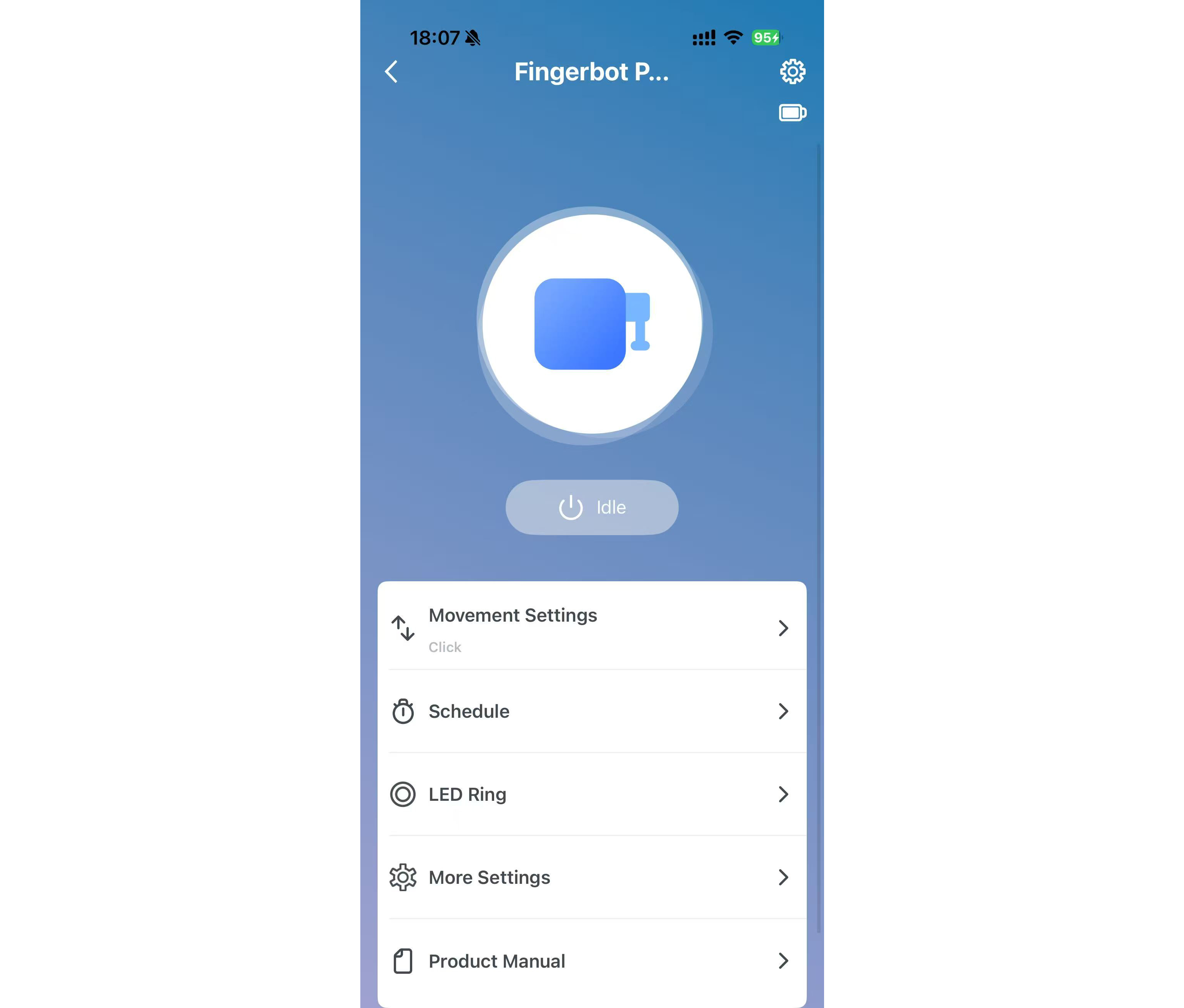
Touchless sensing is enabled by default. Move your finger close to the top surface, about 1 cm away, to trigger the current motion. The RGB Halo lights up as feedback. You can turn off touch control in Motion Settings if accidental triggers are possible in your installation location.
Open "Timer" in the app panel to create:
• 1 countdown timer
• Up to 4 weekly schedules
Schedules are stored on the device and continue to run locally even if the gateway is temporarily offline. The device keeps time independently and can be corrected through the gateway when it reconnects.

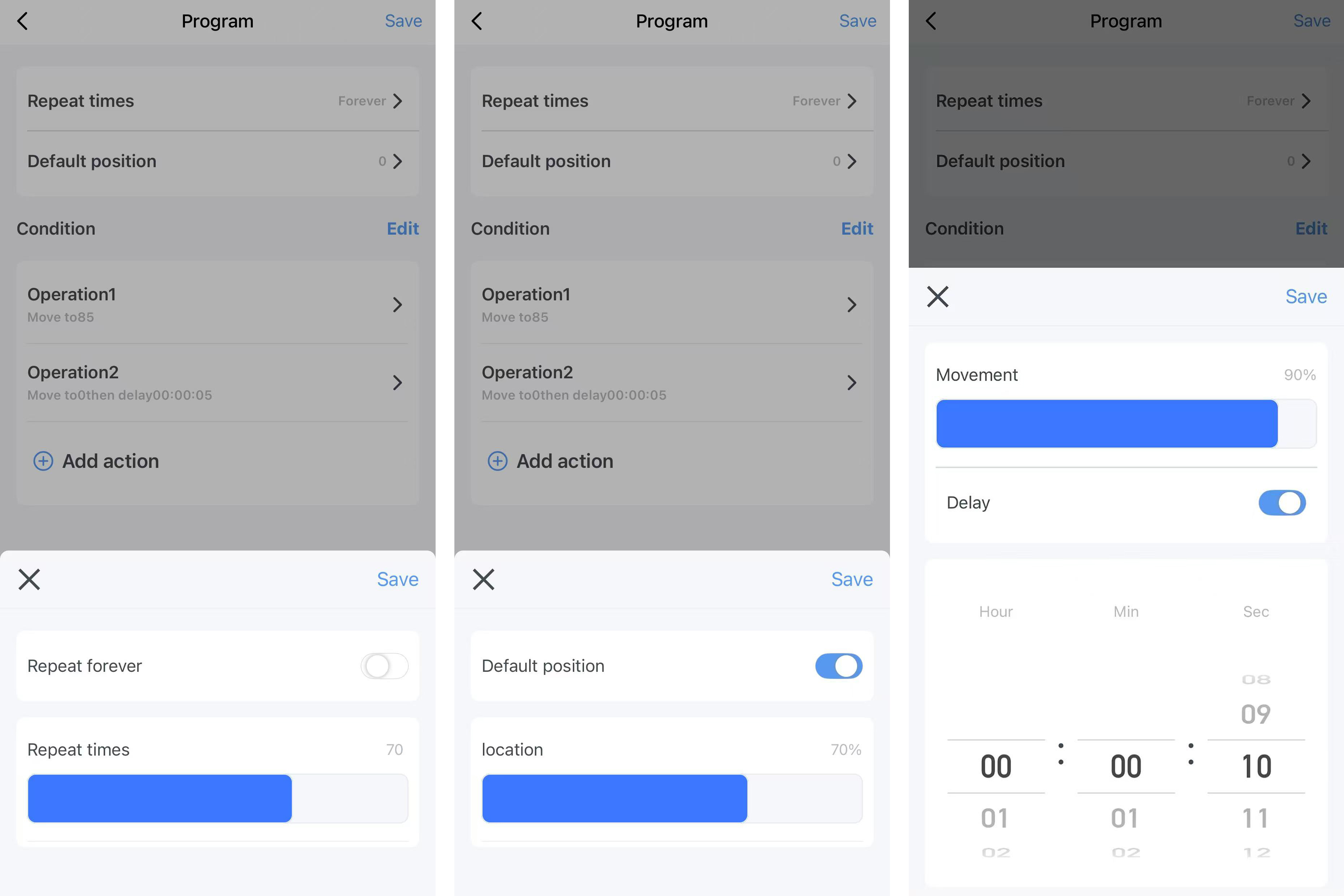
In Program mode, you can define up to 8 action steps. Each step can set:
• Position: 0% to 100%
• Delay before the next step: 0 seconds to 8 hours
The sequence can run 1 to 100 times or loop continuously. You can also set the final arm position after the sequence ends.
Example: for a coffee maker that needs one long press, a wait, and one short press, build the whole sequence once and run it manually or by schedule.
The RGB Halo page lets you customize:
• Halo color: 12 preset colors and custom HSV color selection
• Press effect: multiple effects such as constant on, chasing light, meteor, heartbeat, rainbow, and related variants
• Charging effect: multiple effects such as breathing, flowing, classic, filling, wave, starry, rainbow, and related variants
Effect names and available options may vary slightly by app panel version. Use the names shown in your Smart Life App.

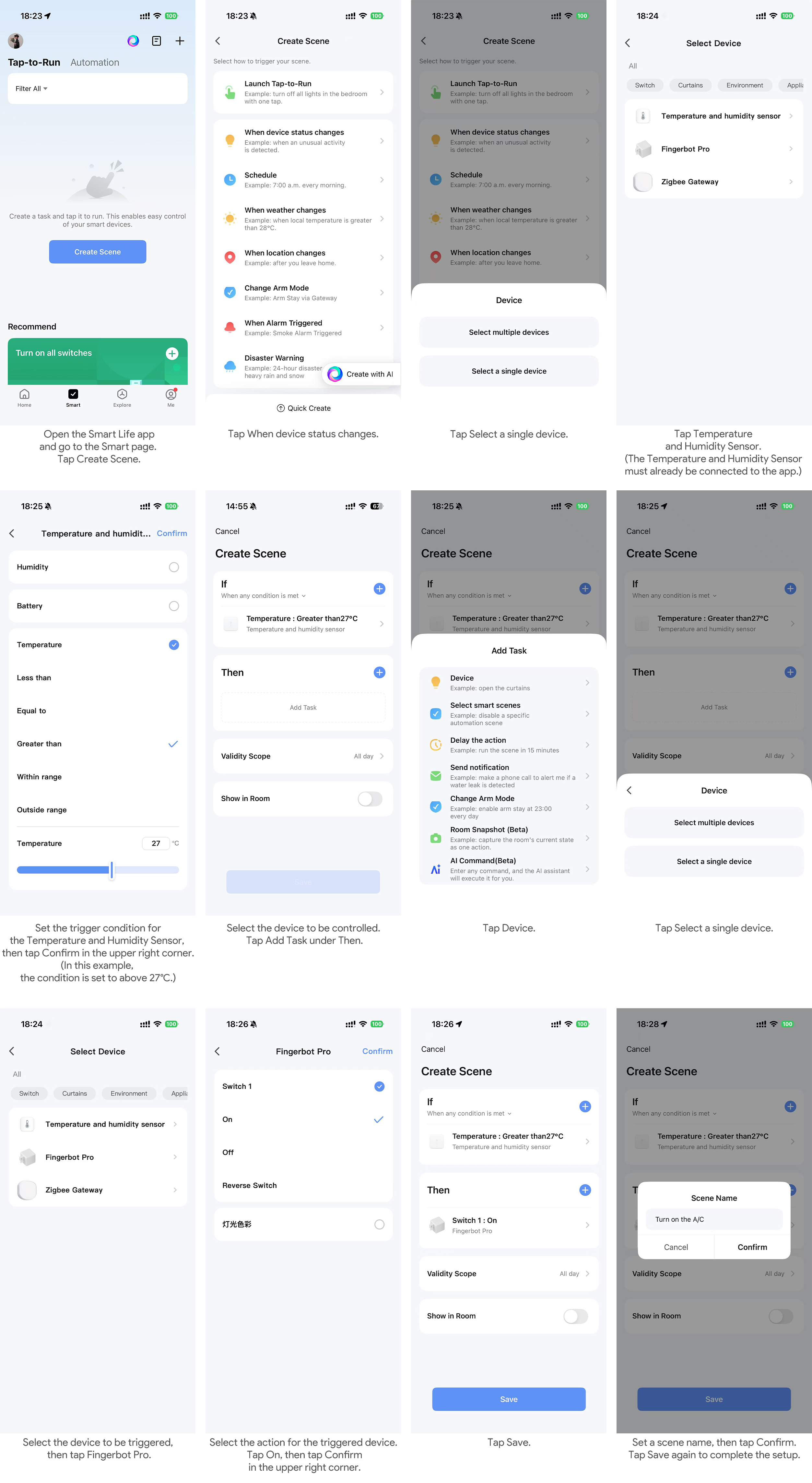
After Fingerbot Pro is paired through a Tuya Zigbee gateway, you can:
• Control the device remotely in the Smart Life App
• Create scenes and automations in the Smart Life App
• Link the Smart Life account with Amazon Alexa or Google Assistant, subject to regional availability
Model: ADFBZ601
Dimensions: 36 x 39.5 x 47 mm
Weight: 42 g
Maximum arm travel: 12 mm
Maximum pressing force: 10 N
Wireless protocol: Zigbee 3.0, IEEE 802.15.4
Cloud platform: Tuya IoT Platform
Gateway requirement: Compatible Tuya Zigbee gateway, sold separately
Charging port: Type-C
Power input: DC 5 V / 1 A
Battery: 500 mAh built-in rechargeable lithium battery
Charging time: About 3 hours
Operating temperature: -10 C to 50 C
Operating humidity: 80% RH or less
Light ring: 6 full-color LEDs, RGB Halo
Touch method: Touchless sensing, also supports direct touch; sensing distance about 1 cm
Installation: Removable base with high-strength double-sided adhesive
• This product is not waterproof. Do not install it underwater or in wet environments.
• This product contains a lithium battery. Do not use or store it in humid or high-temperature environments.
• Keep the press arm clear while the device is moving. Blocking the arm may damage the motor.
• Do not disassemble or repair the product yourself. Contact the seller for service.
• This product is intended only for assisting low-voltage household physical buttons. Do not use it for safety-critical controls, including medical equipment, industrial controls, gas valves, emergency elevator controls, fire controls, or maintenance circuits.
• Assisted elevator button pressing means normal floor-selection buttons only. Do not use this product on emergency stop, fire service, maintenance, or other safety-control circuits.
• This product is not a substitute for a safety device.
• Keep adhesive pads and other small parts away from children.
• Children under 12 should not install, charge, or use this product without adult supervision.
• Do not allow children to play with the Type-C port or charging cable.
• Data is transmitted through the linked platform connection. Manage sharing and authorization through the Smart Life App.
Q1: The pairing light does not flash. What should I do? A: Make sure the device has power. Press and hold the reset / pairing button for at least 5 seconds. If the light still does not turn on, charge the device for 10 minutes and try again.
Q2: The gateway cannot find the device or pairing fails. A: Confirm that the Tuya Zigbee gateway is online, the gateway is in "Add sub-device" mode, and the device is within 10 meters of the gateway without thick walls between them. If there are other Zigbee networks nearby, temporarily disable them and try again.
Q3: The press arm cannot press my button. A: Increase the resistance setting in Advanced Settings, check that the press arm is aligned with the center of the button, then run calibration again if needed.
Q4: The base falls off after installation. A: Clean the surface thoroughly and wait until it is dry. Press the adhesive firmly for 30 seconds and wait 24 hours before regular use.
Q5: Can I remove the main unit from the base? Will it become loose? A: Yes. The main unit is designed to be removed by hand for charging. The latch is designed for repeated normal use.
Q6: The device goes offline frequently. A: Keep the gateway and device within about 10 meters and avoid thick walls. If the distance is long, add a Zigbee router device such as a smart plug between them. You can also check whether your Wi-Fi router is causing 2.4 GHz interference and change the Wi-Fi channel if needed.
Q7: How do I turn off the light effects? A: In the RGB Halo page, set both the press effect and charging effect to "Off".
Q8: Can more than one phone control the same Fingerbot Pro? A: Yes. Use the Smart Life App family member sharing feature. After gateway pairing, shared users can also use supported remote control and voice assistant functions.
Q9: Does it work with third-party Zigbee gateways such as Aqara or SmartThings? A: This product is certified for use with Tuya Zigbee gateways. Other Zigbee gateways may support basic Zigbee functions, but the full app control panel, light effects, program mode, and advanced settings require the Smart Life App with a compatible Tuya gateway.