ADTRB001 Touch Robot User Manual
User Manual

English

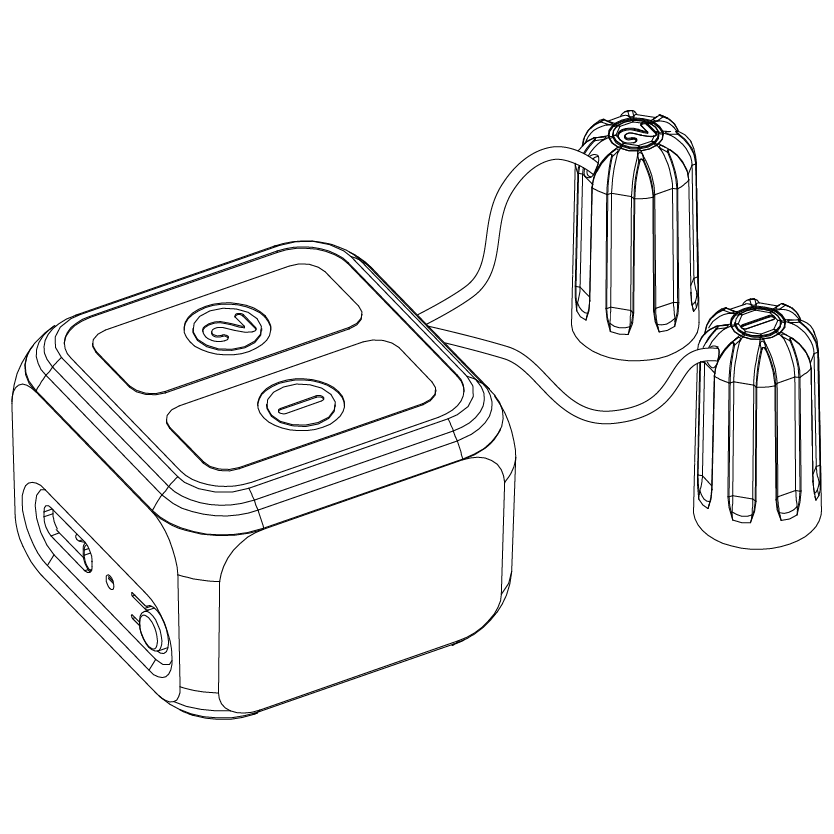
Model: ADTRB001
Product Name: Touch Robot
Platform: Powered by Tuya · Tuya Smart
The Touch Robot is a smart device that connects to the Smart Life App through Bluetooth 5.0 / BLE. It can simulate a finger touch to help control capacitive touch buttons on existing home appliances.
It can be used for air conditioner touch temperature adjustment, air purifier touch switches, electric curtain touch control, and other devices that can be triggered by capacitive touch sensing. The device supports Smart Life App control, touch response duration adjustment, schedule / countdown, battery display, and charging status display.
Touch Robot main unit × 1
Type-C data cable × 1
3M adhesive × 2
Touch pad for replacement × 6
Search for “Smart Life” in your mobile app store and install the App. After installation, log in or create an account, then follow the on-screen instructions in the App to add the device.


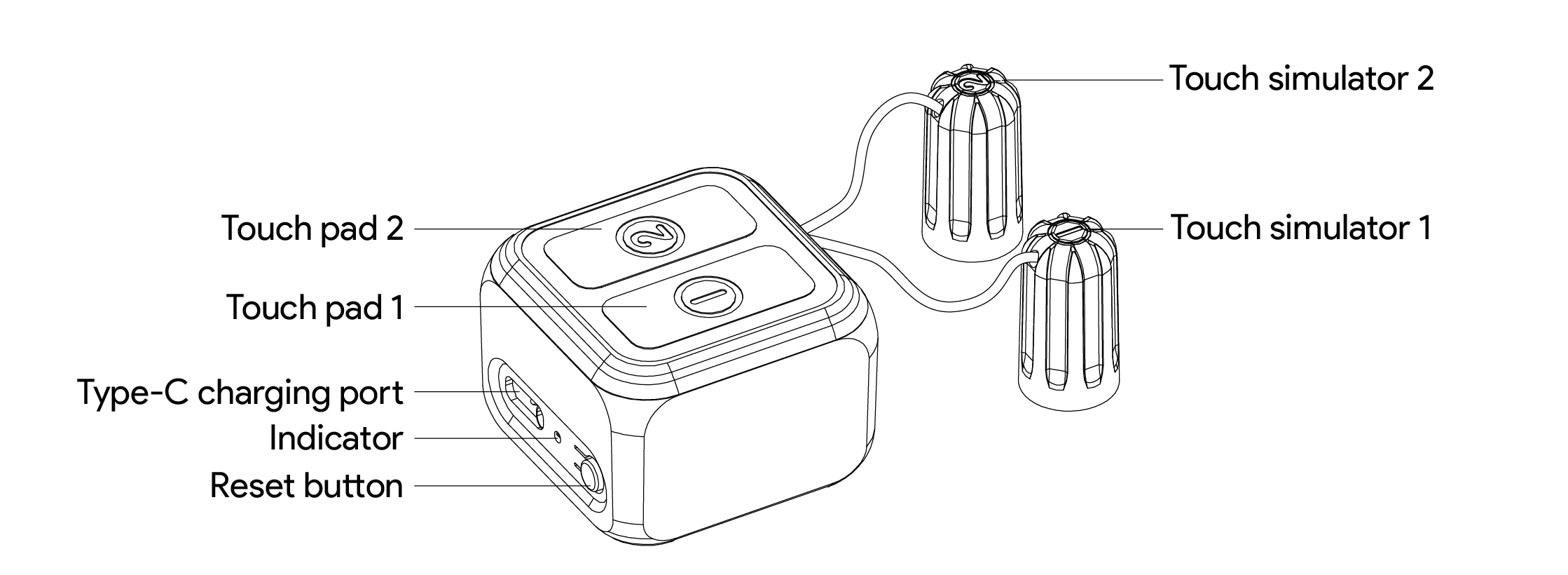
Main unit: Receives App commands and drives the touch pad to complete the touch action
Touch pad: Aligns with the target touch-screen control point to simulate a finger touch
Reset button: Press and hold for 5 seconds to enter pairable state
Indicator: Shows pairing, action confirmation, charging, fully charged, and other status prompts
Type-C charging port: Connects to the Type-C data cable to charge the device
3M adhesive fixing area: Secures the device near the target position
Blue light flashing: The device is in pairable state
Blue light stays on: Action trigger confirmation / fully charged
Blue light breathing: Charging
Off: Not charging or no prompt status
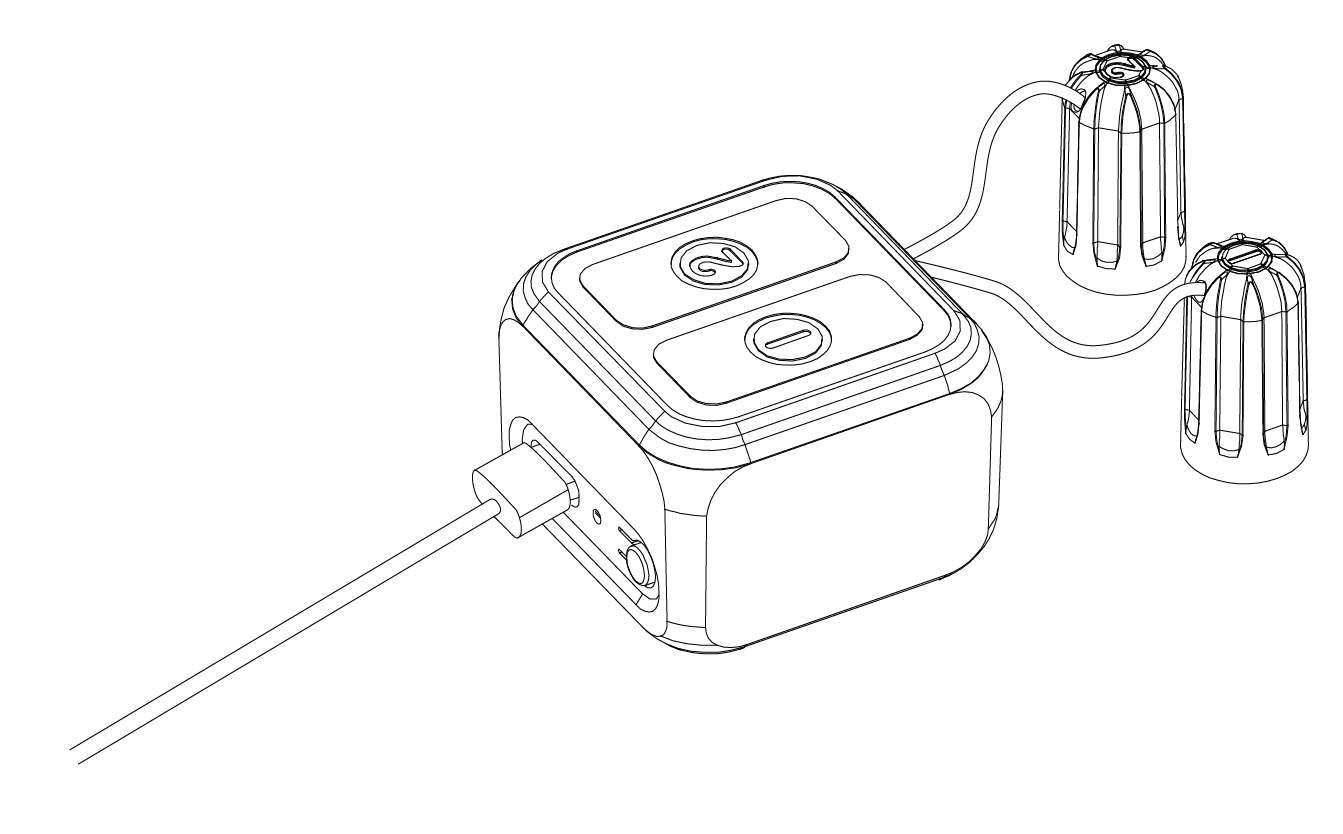
Use the included Type-C data cable to connect the device, and power it with a DC 5V/1A adapter. The blue light breathes while charging and stays on after the device is fully charged. Do not charge in humid, high-temperature, or splash-prone environments.
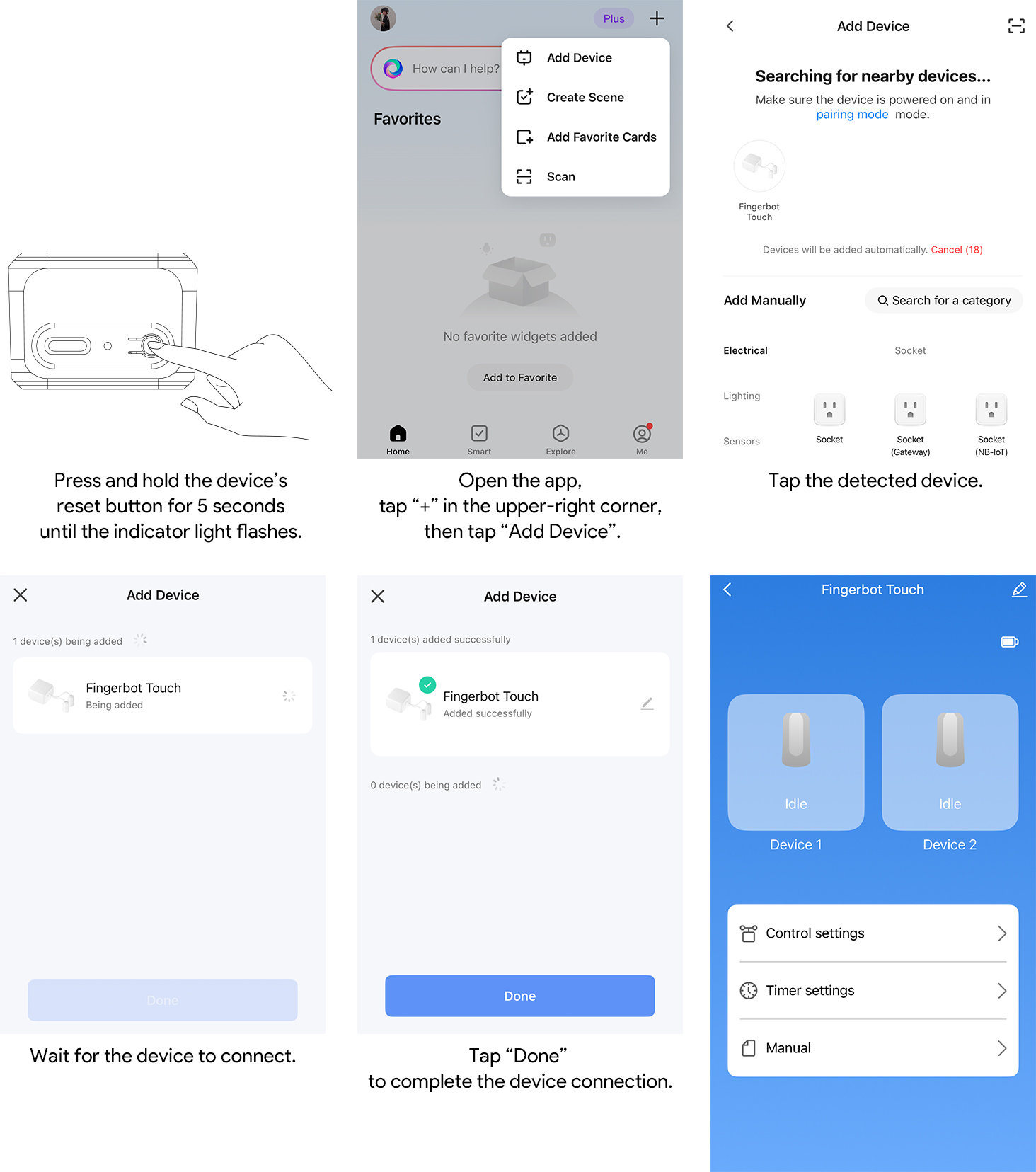
1. Open the Smart Life App, tap the “+” button in the upper-right corner of the home page, and select “Add Device”.
2. Press and hold the device reset button for 5 seconds until the blue light starts flashing. The device enters pairable state.
3. After the App scans nearby devices, follow the on-screen instructions to complete binding.
This product is a BLE device and does not require Wi-Fi connection when adding the device. Follow the Smart Life App prompts to enable the required permissions.
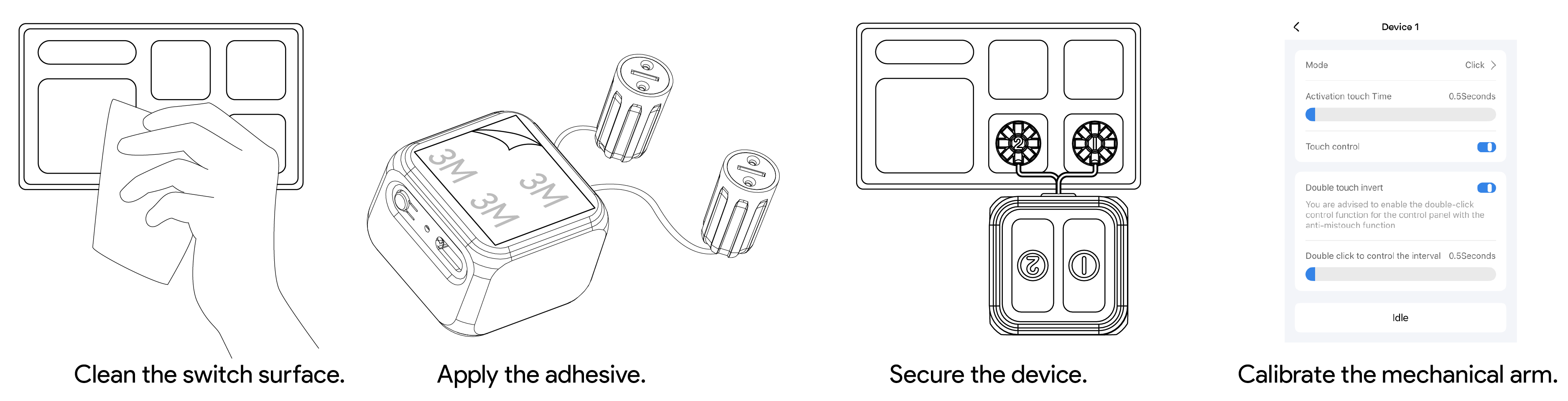
1. Clean the surface of the planned installation position to remove dust and oil, ensuring that the 3M adhesive can stick firmly.
2. Use the included 3M adhesive / double-sided adhesive to fix the Touch Robot in the selected position.
3. Align the touch pad with the target touch-screen control point, gently press it down, and confirm that the position is accurate.
4. Adjust the touch duration through the Smart Life App so the touch action matches the target device.
Note 1: It is recommended to use a USB-C power cord to connect the device to the power adapter. Stable power supply can ensure more stable signal transmission, thereby improving control sensitivity and operational experience.
Note 2: This device is only compatible with most capacitive touch screens. Resistive screens and other types of screens cannot be recognized and used
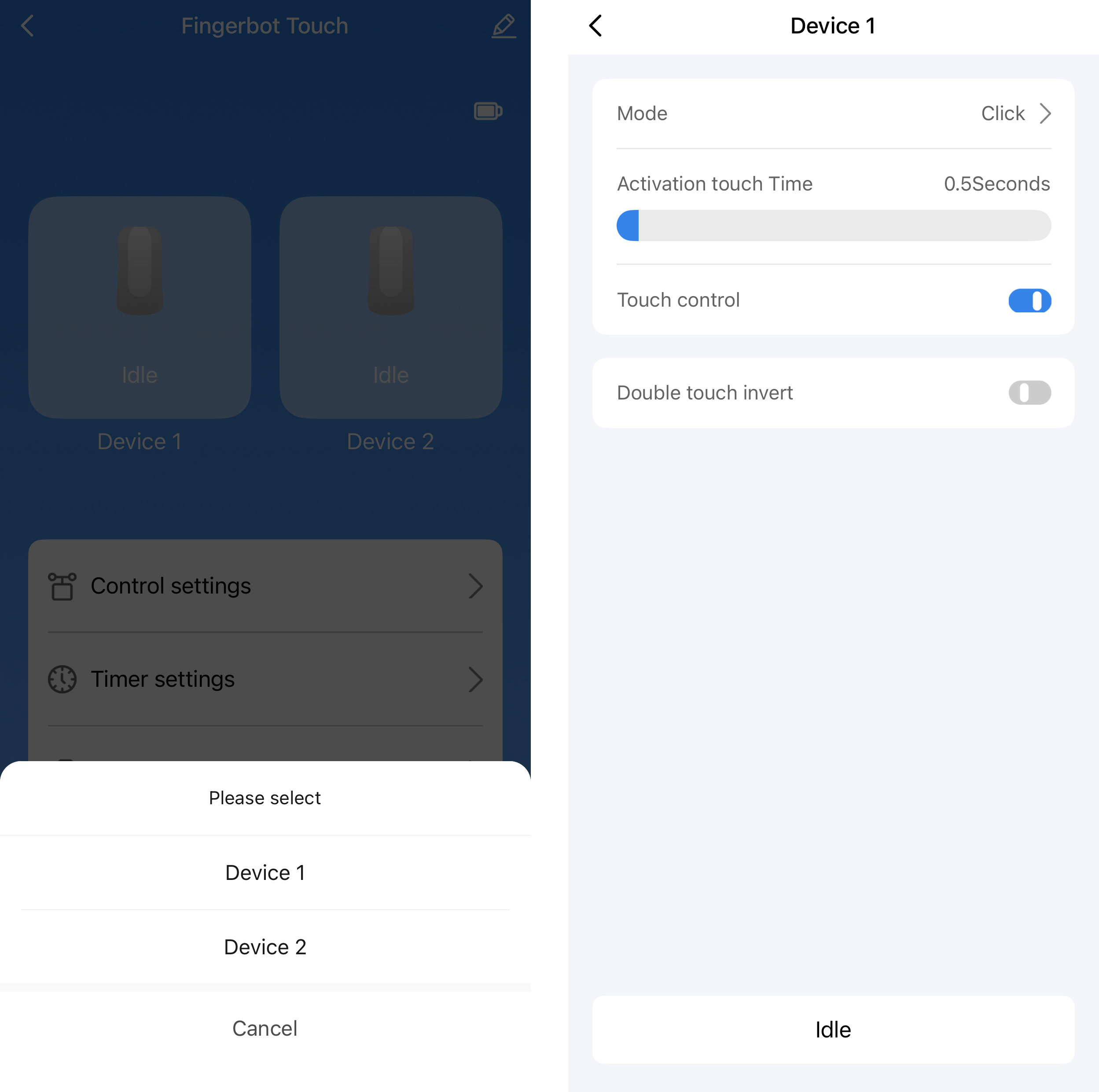
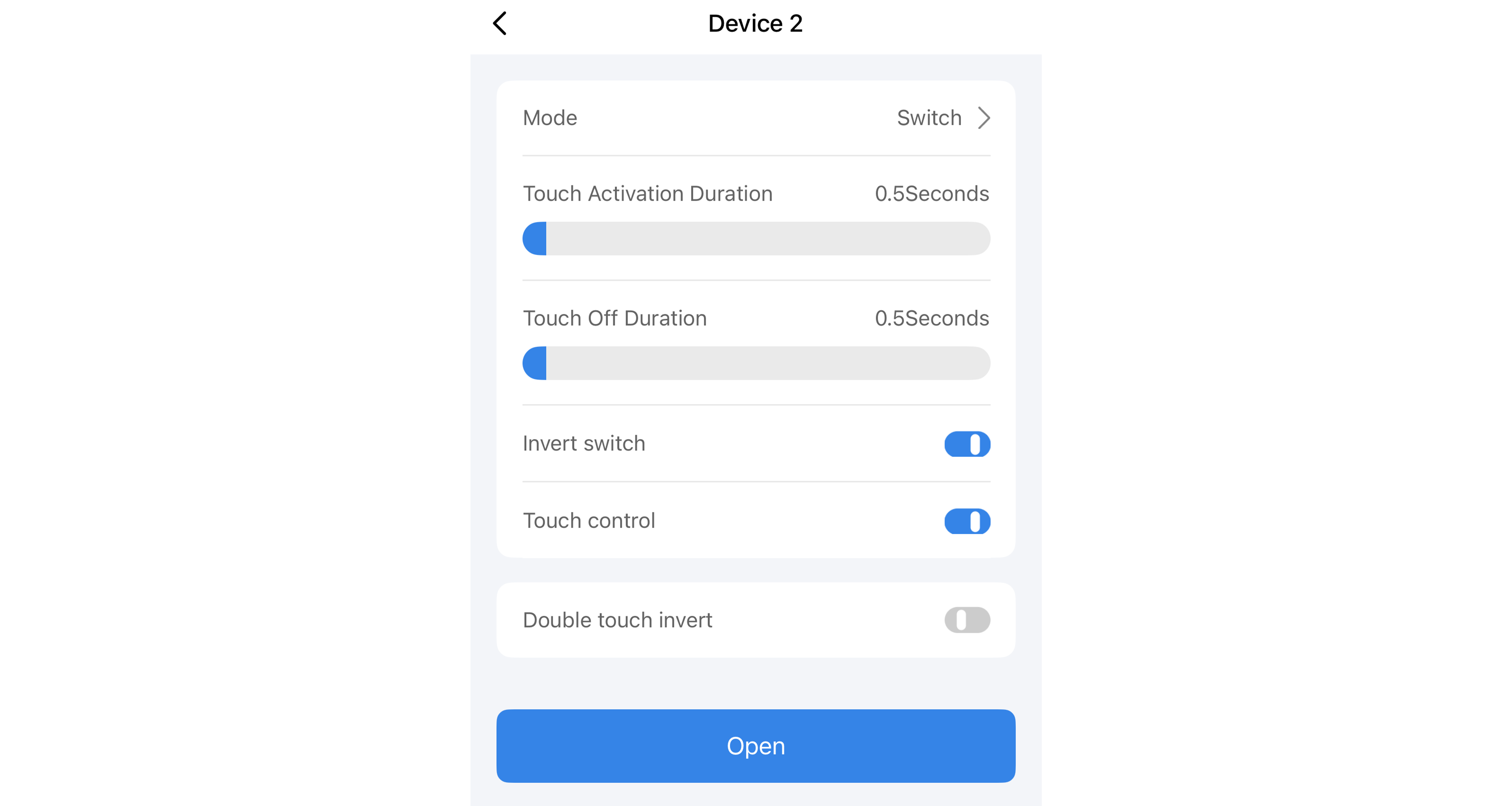
Before regular use, adjust the touch duration in the device control panel. The default action time is 500 ms, and the maximum touch duration is 10s. It is recommended to fine-tune the value based on the response of the target device’s touch screen until each touch can trigger reliably.
After entering the device panel, tap the corresponding action button. When the signal is good, the action will be triggered within 2 seconds, and the blue light will stay on as confirmation.
To ensure stable touch performance, it is recommended to wait at least 5 seconds after each action before triggering the next operation.
When the switch status shown in the App does not match the actual device status, you can use the “Reverse Switch” function to synchronize the displayed status. After tapping it, the device switch status will immediately flip to match the actual status.
The device supports countdown control, with a maximum countdown duration of 24 hours. The device supports up to 4 schedule tasks, which can repeat by weekday or be enabled once.
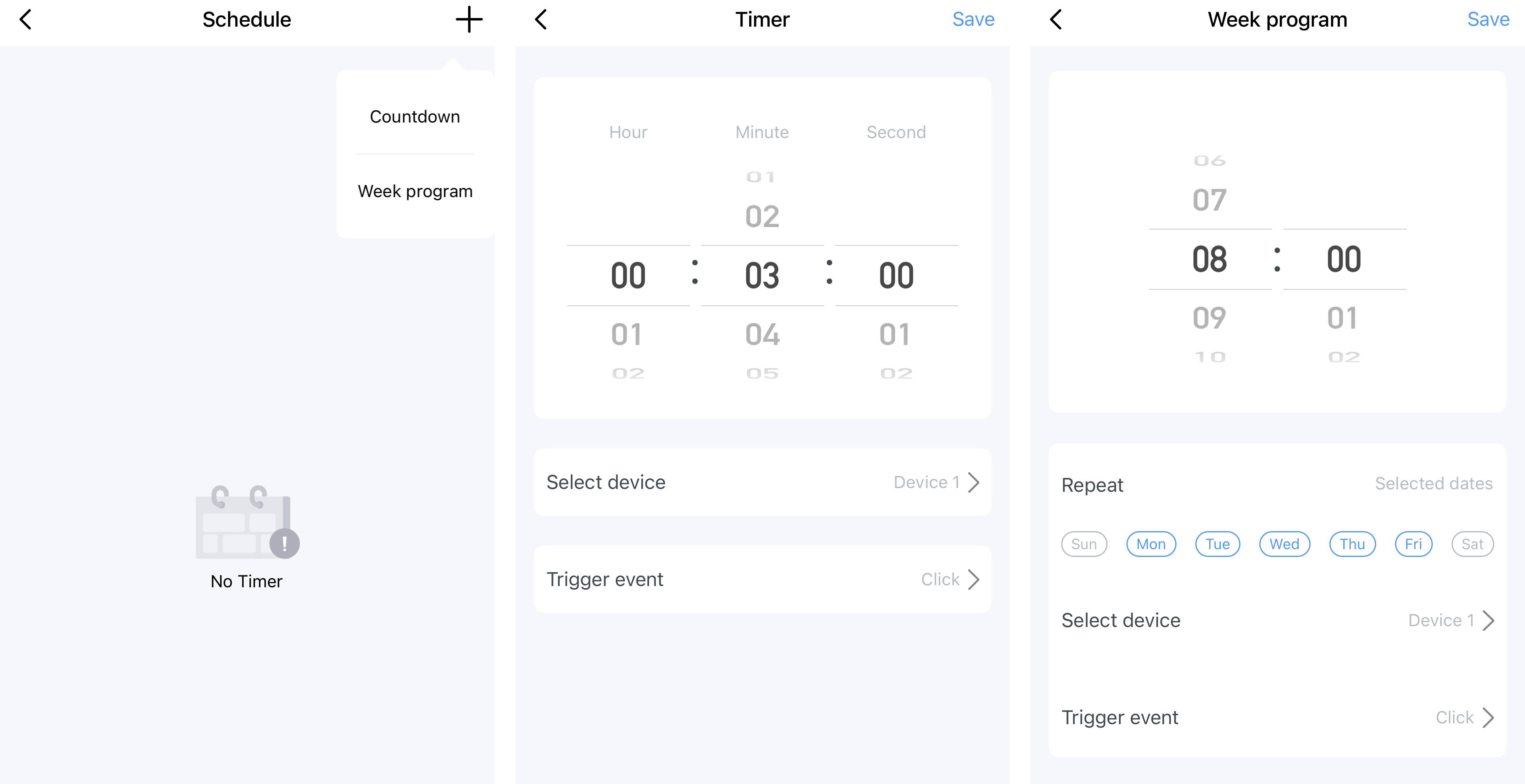
Product model: ADTRB001
Product name: Touch Robot
Dimensions: 38 × 38 × 28 mm
Weight: 34 g
Wireless protocol: Bluetooth 5.0
Communication method: BLE
Battery type: 3.7V lithium battery
Battery capacity: 500mAh
Charging port: USB-C / Type-C
Power input: DC 5V/1A
Maximum touch duration: 10s
Default action time: 500 ms
Countdown: Up to 24 hours
Schedule tasks: Up to 4 groups
Operating temperature: 0°C to 45°C
General Warnings
• This product is not waterproof. Do not use it in humid environments, underwater, or in locations where water may enter.
• Do not use, charge, or store the product in high-temperature environments.
• When using the device, make sure there are no obstacles around the touch pad or within the device’s movement range to avoid damage caused by interference.
• Do not disassemble, modify, crush, puncture, or short-circuit the device by yourself.
• This product is only intended for auxiliary control of touch buttons on household consumer devices. It must not be used in life-safety, medical, elevator, gas, dangerous machinery, or other critical control scenarios.
• This product is not a substitute for a safety device.
Child Safety Warnings
• The package contains small parts and adhesive accessories. Keep them out of reach of children to prevent accidental ingestion or swallowing.
• Children are not recommended to use, install, or charge this product alone.
• During charging, do not allow children to touch the Type-C port or power adapter.
Battery and Charging Warnings
• Use a DC 5V/1A power adapter and Type-C data cable for charging.
• Do not continue using the product in humid or high-temperature conditions, after water ingress, if the housing is damaged, or if abnormal heating is observed.
• If the product will not be used for an extended period, store it in a cool, dry place and check the battery level regularly.
Press and hold the reset button for 5 seconds until the blue light flashes, then add the device again in the Smart Life App. If the device still cannot be found, make sure it has sufficient battery and move it closer to your phone before trying again.
Make sure the touch pad is aligned with the target touch-screen control point, and appropriately increase the touch duration in the App. Different touch screens have different sensitivity levels, so repeated fine-tuning is recommended until the trigger is stable. Also confirm that the target device is a capacitive touch device.
Use the “Reverse Switch” function to flip the switch status shown in the App so the displayed status matches the actual device.
To ensure stable touch performance, it is recommended to wait at least 5 seconds after each action before triggering the next operation.