MSFBHHFT-EN
User Manual

English

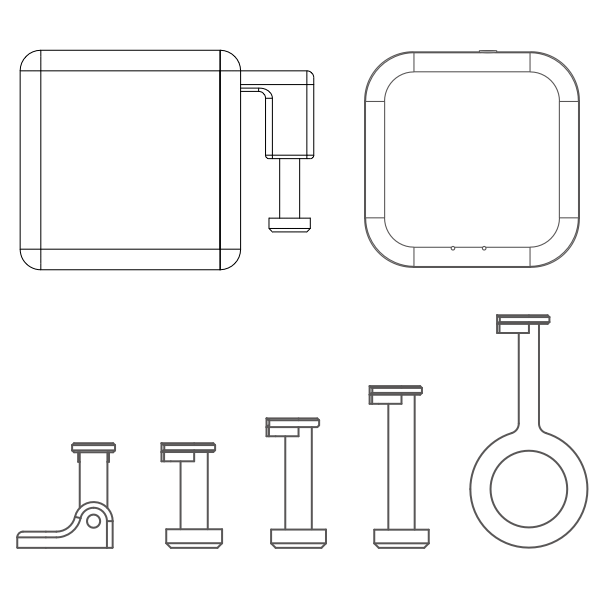

Fingerbot is the world’s smallest robot for smartly controlling different types of buttons and switches. It can control your existing home appliances with robotic clicks. Switch lights via app, schedule a morning coffee, activate your vacuum cleaner with voice command, and remotely power on your office PC. Now all these become effortless with Fingerbot.

You can search "Smart Life" in the mobile application store to install the App


Please open the case from behind and remove the battery insulation sheet to power on the device before use.

When pairing your Fingerbot to a new account, a device reset is needed. Please long-press the reset button for 5 seconds until the blue light flashes to reset the device.

Open the App and click the "+" button on the upper right corner, then click the sensor button in the "Add a device" panel and follow the instructions in the app to pair the device.
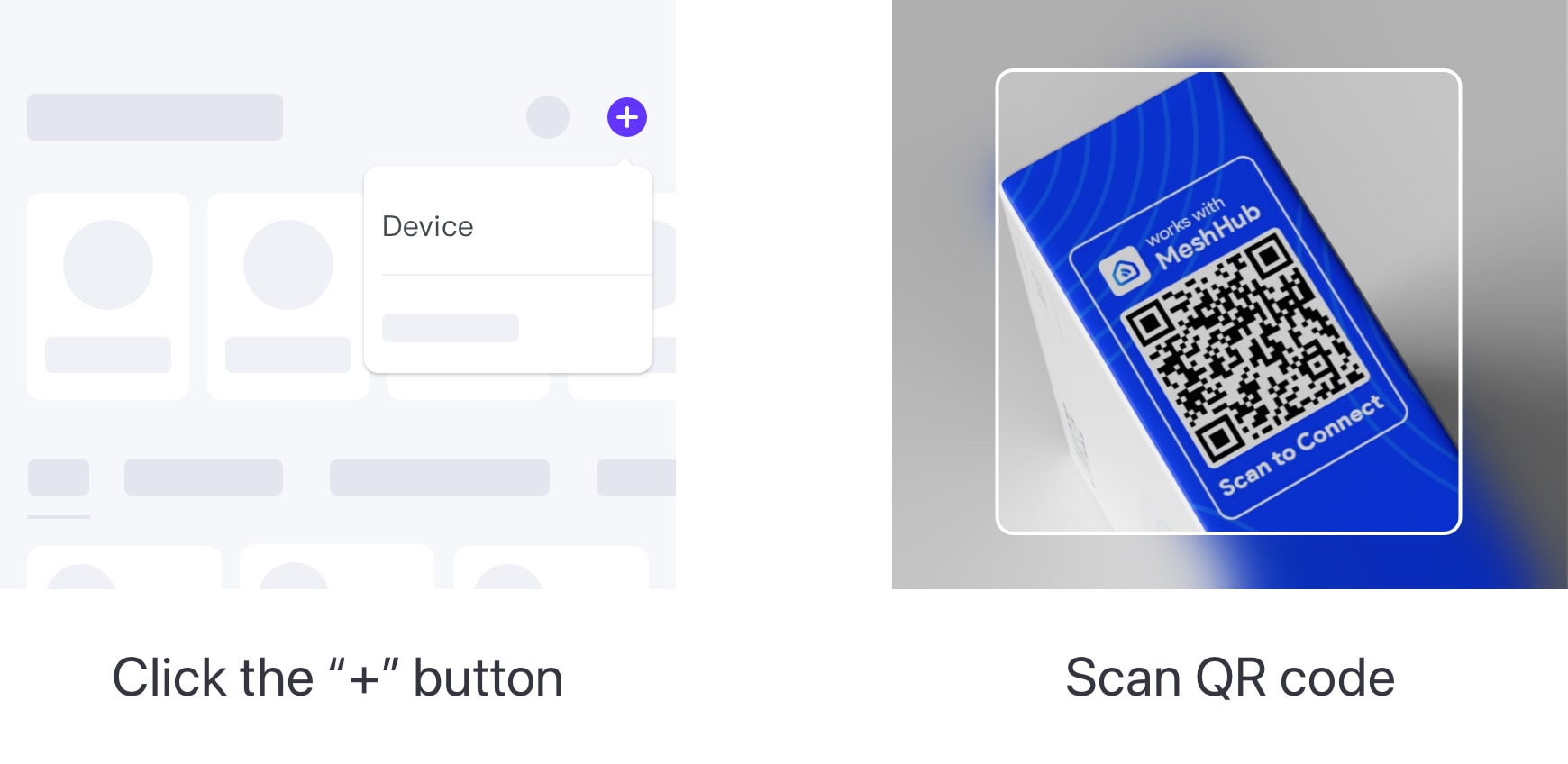
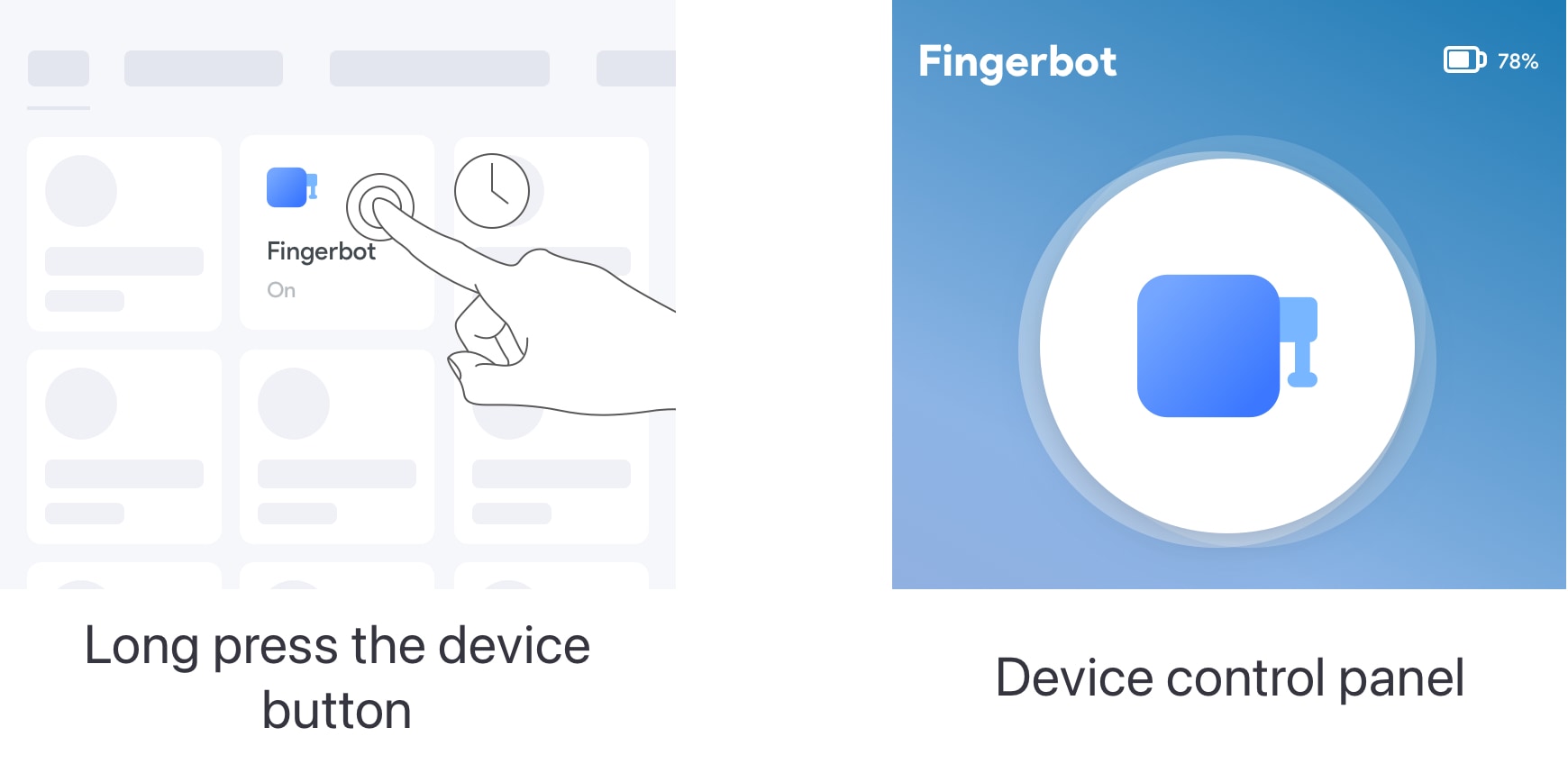
After the device is successfully connected, click the 'Device' tab at the bottom bar. The button representing your Fingerbot will appear in the device collection panel. You can click it to trigger the Fingerbot’s default action.
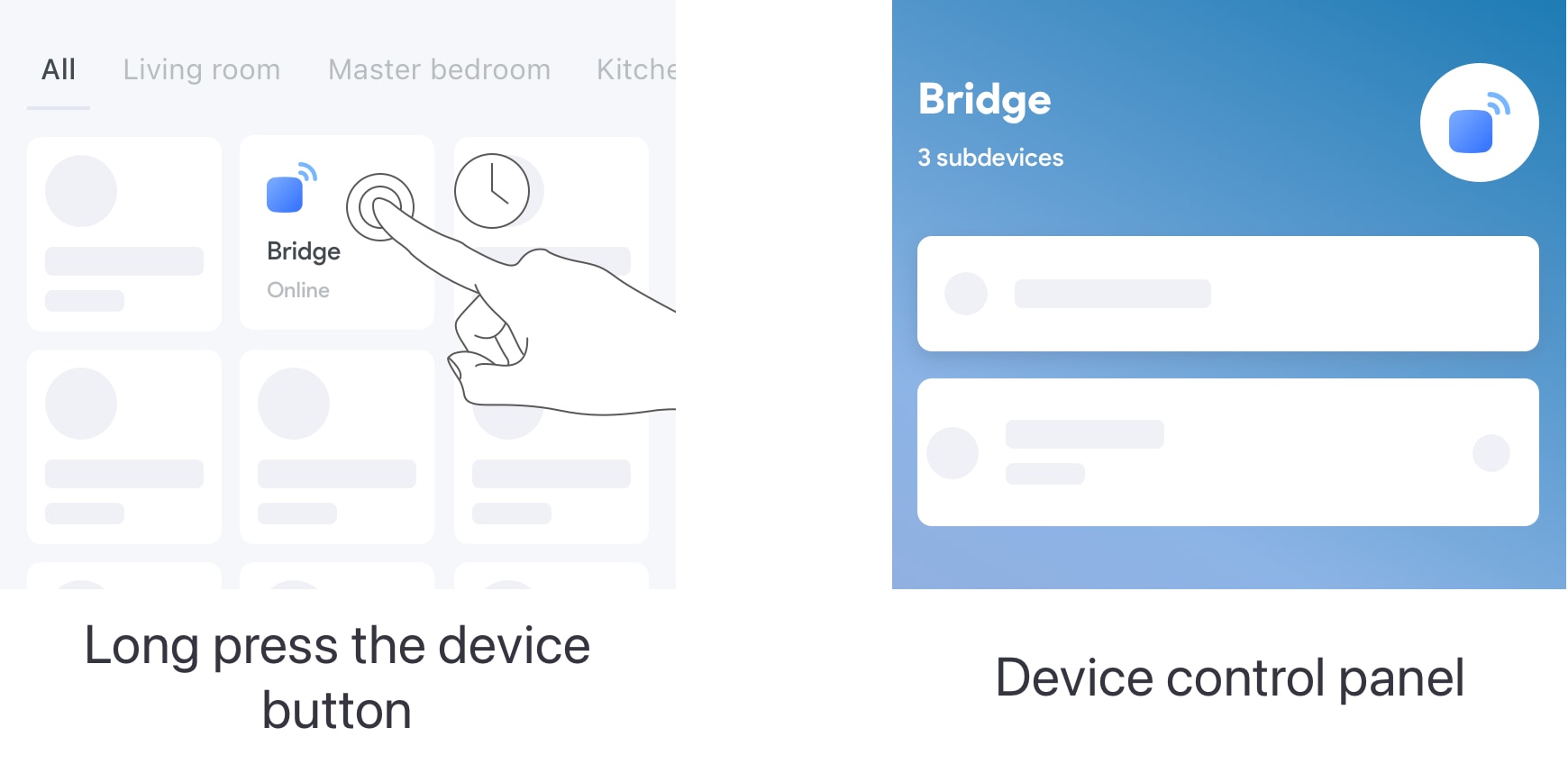
Long press the device button to enter the device control panel. There are more options for adjusting the device, such as mode choice, up/down movement, sustain time, etc.
Note: To ensure the best performance. We recommend resting the device for 30 seconds after it performs a click.
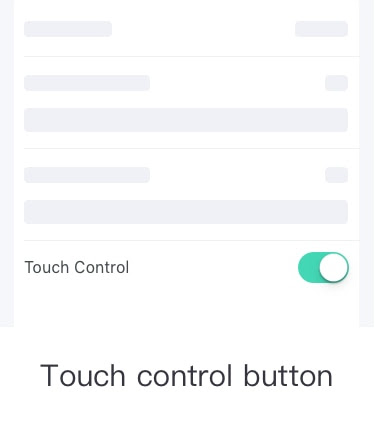
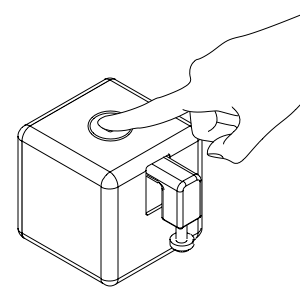
The physical button allows the Fingerbot to be activated without using your phone. Place your finger on the button at least 0.1s. The Fingerbot will be triggered.
To install your Fingerbot:
1. Clean the surface of the button panel where you want to install the Fingerbot.
2. Attach the Fingerbot to the panel using a double-sided tape provided in the Fingerbot package.
3. Connect your Fingerbot with the app and calibrate the movement of the Fingerbot's robotic arm to fit the button. The 'Down Movement' parameter should be set to the value at which the Fingerbot's arm can press the button.
Note: Improper movement settings may bring additional resistance and reduce the life of your Fingerbot.
4. After installation, we recommend resting the device for 24 hours to reach maximum adhesion.
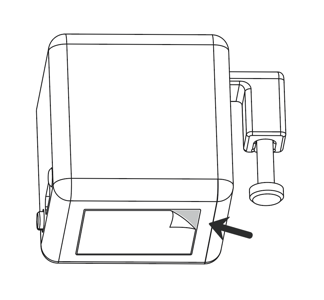
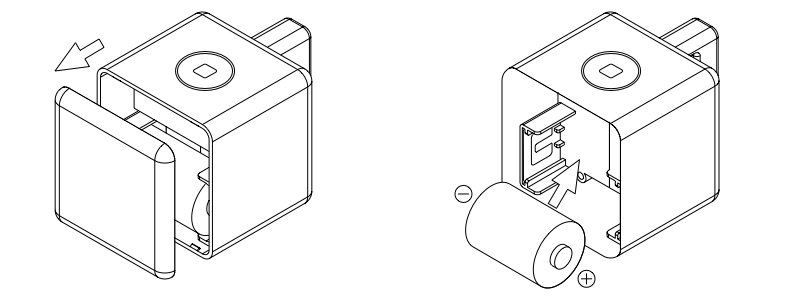
Fingerbot works with a replaceable CR2 3.0V battery. If its arm does not move as expected, please replace the battery.
To replace the old battery, please open the case from behind and ensure the new one is installed in the right direction.
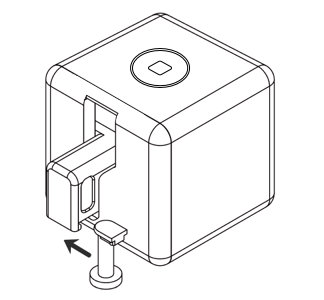
With the modular design, the Fingerbot’s arm is replaceable to meet different needs in diverse situations. We designed three Fingerbot arms and included them in the Fingerbot ToolPack (which should be purchased separately). Also, we provide free 3D printing templates for you to design customized Fingerbot arms. Visit www.meshhub.io to download the digital files.
The product is not waterproof. Please do not install it on an underwater appliance.
The product contains a battery, therefore prohibited in a humid, high-temperature environment.
Do not hinder the movement of the Fingerbot's arm when it is working. Otherwise, it may cause the arm to fall off and damage the motor inside the Fingerbot.
Dimensions: 34.5 x 34.5 x 34.5 mm
Weight: 38g
Wireless protocol: Bluetooth Low Power 4.2
Battery type: CR2
Stall torque: 2.0 kgf·cm
Maximum arm movement: 12 mm
Working temperature: -10℃ ~ 45℃
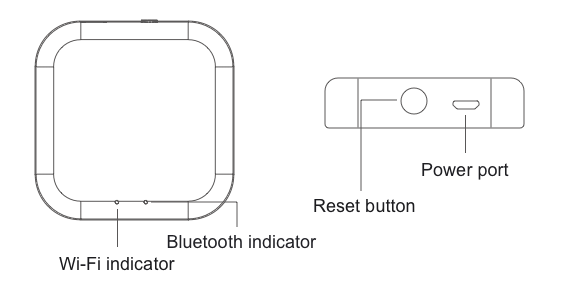
Adaprox HomeHub Bluetooth is a highly integrated smart gateway consisting of a Wi-Fi module and a Bluetooth Low Energy module. Used with the MeshHub App, the Hub can bind Bluetooth devices as its sub-device and provide multiple cloud functions such as remote control, voice control and home automation.
MeshHub App is the mobile platform for controlling MeshHub devices. You can search "MeshHub" in the mobile application store to install the App.
You can reset the Hub by the following steps:
1. Long press the reset button for over 5 seconds.
2. Release the button when both lights go off.
3. The Hub is reset and ready to be paired when the red indicator starts to flash continuously.
After resetting the hub, enter the "Add a device" page in the app, then click the HomeHub Bluetooth (or BLE Bridge) button and follow the instructions in the app to pair the device.
To bind a Bluetooth device to the Hub, long press the HomeHub button in the app to enter its control panel. Click the "+" button on the upper right corner then you can select the available sub-devices to bind.
Dimensions: 62 x 62 x 16 mm
Weight: 34g
Bluetooth protocol: Bluetooth Low Power 4.2
Maximum simultaneous Bluetooth connections: 3
Input power: 5V⎓1A
Working temperature: -10°C ~ 55°C
Working humidity: ≤80% RH
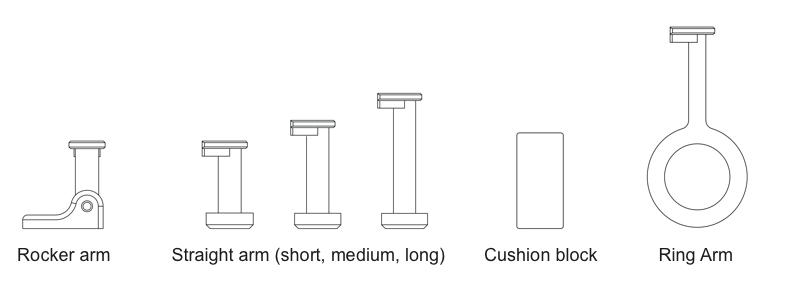
Fingerbot ToolPack is an extension kit of Fingerbot. It contains a rocker arm, a ring arm, straight arms with different lengths, two cushion blocks and 3M tapes.
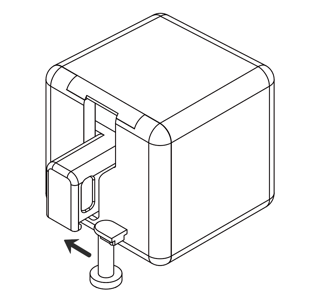
With the modular design, the arm of Fingerbot is replaceable in order to meet different needs in diverse situations. You can install the arm by following the picture below. We provide three straight arms with different lengths to assist Fingerbot better fitting various button-control cases.
Fingerbot makes use of the rocker arm to push and pull the switch button to change the switch status of equipment. Please follow the instructions below to install a rocker arm.
1. After connecting Fingerbot with the App, set Fingerbot to the 'Switch' mode.
2. Move the arm of Fingerbot to the bottom and fix the Fingerbot on the switch panel.
3. Tear off the tape covering on the rocker arm to stick the arm to the switch button.
4. Use the App to adjust the “Up Movement” parameter of Fingerbot's arm, so that its movement range can be adapted to the switch button.

Fingerbot makes use of the ring arm to push and pull a toggle switch to change the switch status of equipment. Please follow the instructions below to install a ring arm.
1. After connecting Fingerbot with the App, set Fingerbot to the 'Switch' mode.
2. Following the picture, fix two cushion blocks to Fingerbot with tape.
3. Put the ring of the arm on the toggle button, and tear off the tape covering on the other side of the cushion block to fix the Fingerbot on the switch panel.
4.Use the App to adjust the movement range of Fingerbot's arm, so that it can be adapted to the toggle.
